
Explore WoW: Forever with a Gamepad
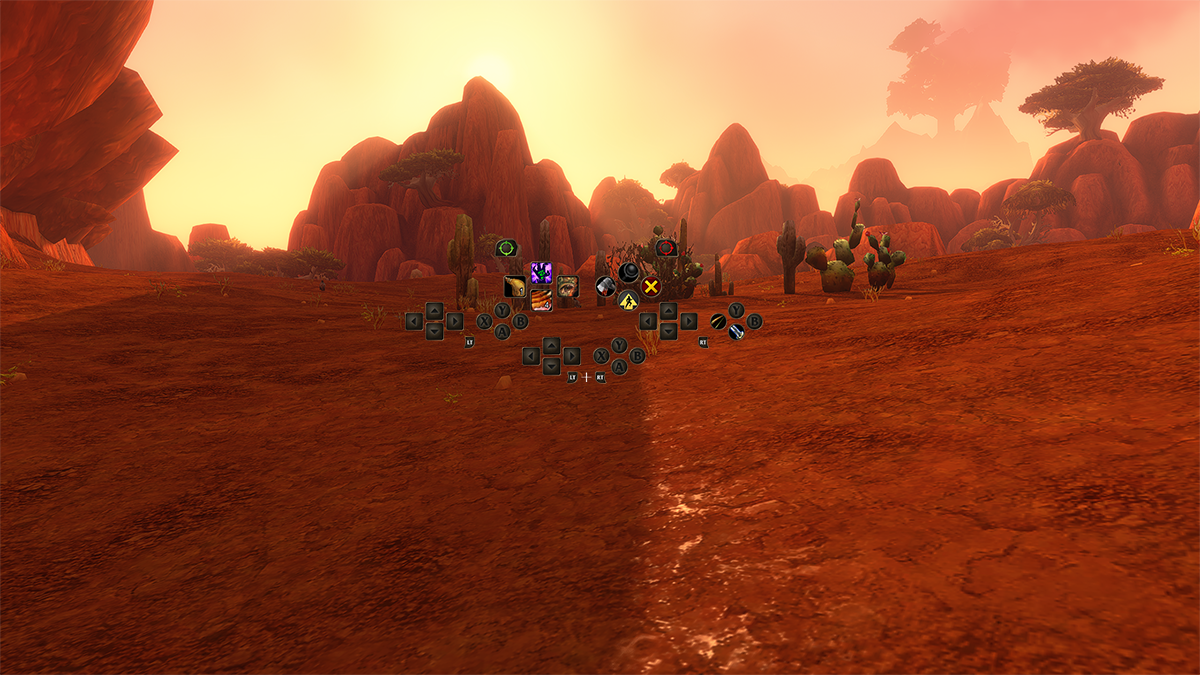
A spell to cast, an ally to heal, a well-earned reward to collect—there’s plenty to keep you busy in Azeroth. If you prefer a gamepad, World of Warcraft: Forever gives you another way to join the action.
In World of Warcraft: Forever , we’ve refined targeting, casting, looting, and menu navigation for gamepads while keeping the familiar feel players have come to know.
Key Highlights & Takeaways
- Move and look around: Move your character with the left stick and adjust the camera with the right stick.
- Select a target: Use the left bumper (LB) for a friendly target or the right bumper (RB) for a hostile target.
- Interact and navigate: The controller map lists X for Interact, A for Jump, B for Back, and Y for Inspect. These buttons also have spell functions.
- Switch action bars: Hold LT, RT, or both triggers together to access different action bars. Release the triggers to return to your default action bar.
- Open menus and change focus: The Menu button opens the Main Menu. The View button, marked with overlapping squares, is listed as Change Focus Frame.
- Zoom in and Zoom Out with the Camera: Hold the left bumper (LB)+ the right bumper (RB) while moving the right stick forward and backward to zoom the camera in and out.
Explore WoW: Forever with a Gamepad
General UpdatesA spell to cast, an ally to heal, a well-earned reward to collect—there’s plenty to keep you busy in Azeroth. If you prefer a gamepad, World of Warcraft: Forever gives you another way to join the action.
Get to Know Your Gamepad Experience
General UpdatesWoW: Forever supports all XInput-compatible controllers and includes Xbox and PlayStation button icons to help you recognize the controls.
Switch to Gamepad Controls
General UpdatesPress Escape to open the Game Menu , select Options , then choose Gamepad under Gameplay to switch from keyboard-and-mouse input.
Put the Controls to Work
General UpdatesHere’s a quick guide to moving, choosing targets, using abilities, and navigating menus with a gamepad. We’re using Xbox button names to describe these controls.
- Move and look around: Move your character with the left stick and adjust the camera with the right stick.
- Select a target: Use the left bumper (LB) for a friendly target or the right bumper (RB) for a hostile target.
- Interact and navigate: The controller map lists X for Interact, A for Jump, B for Back, and Y for Inspect. These buttons also have spell functions.
- Switch action bars: Hold LT, RT, or both triggers together to access different action bars. Release the triggers to return to your default action bar.
- Open menus and change focus: The Menu button opens the Main Menu. The View button, marked with overlapping squares, is listed as Change Focus Frame.
- Zoom in and Zoom Out with the Camera: Hold the left bumper (LB)+ the right bumper (RB) while moving the right stick forward and backward to zoom the camera in and out.
More Abilities, Familiar Buttons
General UpdatesThe gamepad HUD shows four action bars. Each uses the same button layout but can hold a different set of spells and abilities. Hold LT , RT , or LT + RT to switch bars, and release the triggers to return to the default bar. The HUD updates to show the abilities available on your active bar.
- Up: Polymorph (Sheep)
- LT + Up: Fireball
- RT + Up: Frostbolt
- LT + RT + Up: Blizzard
Organize Your Action Bar Sets
General UpdatesWant separate layouts for combat, utility abilities, or frequently used actions? You can switch between three action bar sets by holding LB + RB and pressing Left or Right on the directional pad (D-pad).
Reach Your HUD with Shortcuts
General UpdatesHold both shoulder buttons ( LB + RB ), then press the following buttons to access frequently used HUD elements:
- LB + RB + B: Open Backpack
- LB + RB + Up: Access Quest Tracker
- LB + RB + Down: Access Chat
- LB + RB + Y: Manage Buffs
Find Your Controls at a Glance
General UpdatesA gamepad legend sits in the upper-left corner of the main screen. It expands when you take certain actions to show additional options.
Built for the Adventures You Share
General UpdatesTanking, healing, and dealing damage all call for selecting the right target at the right moment. Friendly and hostile targeting controls help you choose allies and enemies as you play with your party.
A Familiar World, a Reworked Interface
General UpdatesThe gamepad HUD uses a layout built around the controls in your hands. Beyond combat, interface updates are ongoing to make bags and menus easier to navigate with a gamepad.
What Players Need to Know
Directly impacts World of Warcraft: Forever mechanics, realm scheduling, or character progression.